
Microsoft Excel is one of the most popular spreadsheet applications used worldwide for organizing data, performing calculations, and analyzing information. Whether you are a student, job seeker, or working professional, learning Excel from scratch can significantly improve productivity and data-handling skills.
This Excel tutorial for beginners will guide you step by step—from understanding the Excel interface to working with formulas, charts, PivotTables, and common errors.

What Is Microsoft Excel, and Why Learn It?
Microsoft Excel is a spreadsheet program developed by Microsoft that allows users to store data in rows and columns, perform calculations, and create visual reports such as charts and graphs.
Excel is widely used because it helps:
- Organize and manage large amounts of data
- Perform calculations automatically using formulas
- Analyze trends and patterns
- Create professional reports and dashboards
Learning Excel is valuable for careers in business, finance, marketing, data analysis, administration, and education.
Excel Tutorial for Beginners
If you are new to Excel, understanding its basic structure is the first step.
Understanding Workbooks, Worksheets, and Cells
- A workbook is an Excel file.
- A worksheet is a single sheet inside a workbook.
- A cell is the box where a row and column intersect (for example, A1).
Navigating the Excel Interface
The Excel interface includes:
- Ribbon (Home, Insert, Formulas, Data tabs)
- Formula bar
- Worksheet grid
- Sheet tabs at the bottom
How to Use Excel Step by Step
Learning Excel becomes easier when you follow simple steps.
Opening and Creating a Workbook
- Open Excel and choose Blank Workbook
- You can also select ready-made templates
Entering and Editing Data
- Click a cell and type text or numbers
- Press Enter to move down or Tab to move right
- Double-click a cell to edit its content
Saving Your Work
- Use Ctrl + S (Windows) or Cmd + S (Mac)
- Save files with meaningful names for easy access
Basic Excel Formulas and Functions
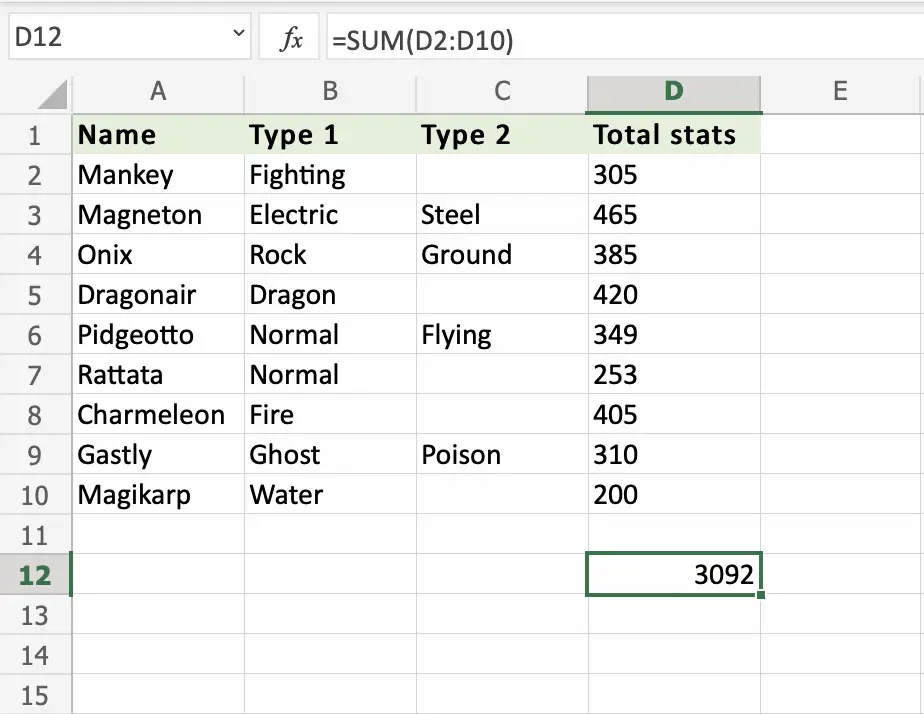
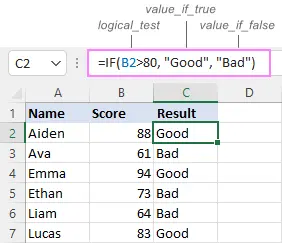
Excel formulas help you perform calculations automatically.


Common Basic Functions
- SUM – Adds numbers
- AVERAGE – Calculates the average
- COUNT – Counts numeric values
- IF – Applies conditions
- VLOOKUP – Searches data in a table
How to Write a Formula
- Click a cell
- Type =
- Enter the formula (example: =SUM(A1:A5))
- Press Enter
Advanced Excel Formulas Explained
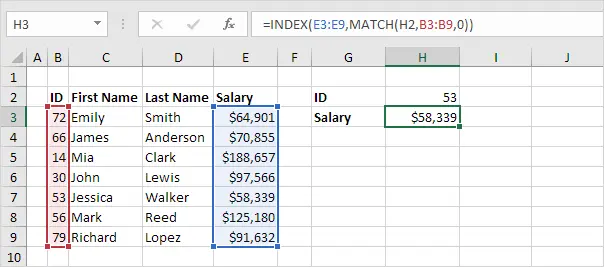
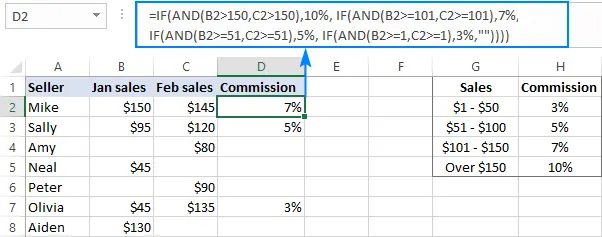
Advanced formulas help you work with complex datasets efficiently.

Useful Advanced Functions
- XLOOKUP – Modern replacement for VLOOKUP
- INDEX + MATCH – Flexible lookup combination
- Nested IF – Multiple conditions in one formula
- TEXT Functions – Format numbers and dates
These formulas are commonly used in business reporting and data analysis.
How to Create Charts and Graphs in Excel
Charts make data easier to understand.
Steps to Create a Chart
- Select your data
- Go to the Insert tab
- Choose a chart type (column, line, pie, or bar).
Why Use Charts
- Identify trends
- Compare values
- Present data visually in reports
Excel Pivot Tables Tutorial
PivotTables allow you to summarize large data sets quickly.
What Is a PivotTable?
A PivotTable reorganizes and summarizes data without changing the original data source.
Creating a PivotTable
- Select your dataset
- Click Insert → PivotTable
- Drag fields into Rows, Columns, Values, and Filters
PivotTables are widely used in business analytics and reporting.
Excel Data Analysis Tools
Excel includes several built-in tools to analyze data efficiently.
Key Data Analysis Features
- Sorting and Filtering
- Conditional Formatting
- Tables
- Data Validation
- Quick Analysis Tool
These tools help you identify patterns, errors, and insights quickly.
Excel Tips and Tricks for Faster Work
- Use AutoFill to copy patterns
- Convert data into Tables for easy filtering
- Use Freeze Panes to lock headers
- Apply Conditional Formatting to highlight important values
These tips help improve speed and accuracy.
Excel Shortcuts Every User Should Know
Keyboard shortcuts save time and reduce repetitive actions.
Common Excel Shortcuts
- Ctrl + C / Ctrl + V – Copy / Paste
- Ctrl + Z – Undo
- Ctrl + Arrow Keys – Fast navigation
- Ctrl + S – Save workbook
Learning shortcuts significantly boosts productivity.
Excel Tutorial for Business and Office Work
Excel is widely used in offices for:
- Budgeting and forecasting
- Sales and performance reports
- Inventory management
- Payroll and tracking systems
Excel skills are often required in job descriptions across industries.
Common Excel Errors and How to Fix Them
Excel may show errors when formulas are incorrect.
Common Errors
- #DIV/0! – Division by zero
- #VALUE! – Incorrect data type
- #REF! – Invalid cell reference
How to Fix Errors
- Check formula syntax
- Verify cell references
- Ensure correct data types
Free Excel Resources and Practice Files
You can practice Excel using free resources such as:
- Official Microsoft Excel support pages
- Beginner tutorials on educational websites
- Free downloadable Excel practice sheets
Practicing with real data is the best way to learn Excel.
Excel FAQs (Frequently Asked Questions)
Is Excel hard to learn for beginners?
No. Excel is beginner-friendly when learned step by step.
How long does it take to learn Excel basics?
Most users learn basic Excel functions within a few weeks of regular practice.
Is Excel useful for jobs?
Yes. Excel is widely used in business, finance, administration, and data analysis roles.







One Comment